How we got a perfect 100 on Google PageSpeed (and the script that almost cost us)
Our site has animated rain, custom fonts and analytics, and still scores 100 on Google's mobile speed test. Here's how, and the one script that dropped us to 82.
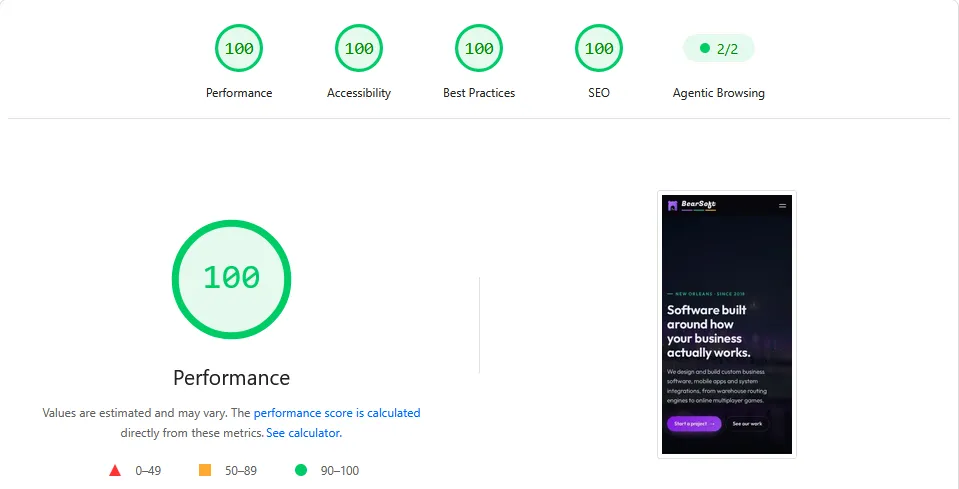
We recently rebuilt bearsoft.org. On Google’s PageSpeed Insights mobile test, it now scores 100 for Performance, Accessibility, Best Practices and SEO.
That isn’t because the site is plain. The home page has a full-screen animated rain effect you can wipe away with your finger, custom fonts, optimized photos and Google Analytics. Speed came from a handful of decisions, each of which you can apply to almost any website.
Where we started
Our previous site was a single page built around a 3D graphics library. It loaded nearly 480 KB of JavaScript and a 2.5 MB background photo before visitors saw much of anything. It looked good on a fast laptop and struggled on a phone.
1. Send less code
The new site is built with Astro, which turns every page into plain HTML when the site is built. There’s no framework running in the visitor’s browser just to show text and images.
The whole home page now uses about 13 KB of JavaScript, down from nearly 480 KB, and most of that is the rain effect. The other pages need even less. Code that never ships is code that never slows anyone down.
2. Make every image earn its size
Images are the heaviest thing on most websites, and the easiest to fix:
- Modern formats. Photos are converted to WebP, which is typically much smaller than JPEG at the same quality. Our hero photo dropped from 147 KB to about 78 KB.
- The right size for each screen. A phone doesn’t need a photo sized for a large monitor. Each image comes in several widths, and the browser downloads only the one it needs. Our French Quarter photo started as a 2.5 MB file. Visitors now download between about 45 KB and 200 KB of it, depending on their screen.
- Load what’s on screen first. The hero photo is marked as high priority. Photos further down the page wait until they’re about to scroll into view.
3. Keep the special effect, but move it out of the way
The rain on the home page is drawn by the graphics chip using WebGL. Starting it up means compiling graphics code, decoding a photo and preparing the chip. That’s normally done on the browser’s main thread, the same thread that responds to taps and scrolling. On a phone, it tied up the main thread for a noticeable moment right as the page appeared.
We moved the whole effect into a web worker, a separate background thread, using a browser feature called OffscreenCanvas. The page hands the canvas to the worker, and from then on every frame of rain is drawn in the background. We also:
- compile the graphics code in the background where the browser supports it
- decode the photo before handing it to the graphics chip
- start the effect only once the page has finished loading, with a blurred version of the photo showing in the meantime
The time the main thread spent blocked on the home page dropped from 190 milliseconds to zero. Browsers that can’t run the effect in a worker still get it the traditional way. Visitors who have turned on “reduce motion” in their device settings see a still image instead.
4. Let the browser skip what’s off screen
Before a page can appear, the browser works out where everything goes. On a long page, that includes sections nobody can see yet.
A single CSS property, content-visibility: auto, tells the browser it can skip laying out a section until it’s about to scroll into view. On our home page, that cut the time spent on the first layout by more than half.
5. Load fonts before they’re needed
Custom fonts can make text jump: the page first shows text in a fallback font, then re-flows it when the real font arrives. Google counts that movement as layout shift. We tell the browser to fetch our two font files right at the start, so text is laid out once, in the right font. Layout shift is now zero on every page we tested.
6. Treat third-party scripts as guests
This was the most surprising lesson. When we added Google Analytics, our mobile score dropped from 100 to 82. Nothing looked slower to us. The analytics script, about 180 KB, simply loaded during the same seconds the page did, and Google’s test counted it against us.
The fix was to load it a moment later: on the visitor’s first scroll, tap, click or key press, or after four seconds, whichever comes first. The score went straight back to 100, and every visit where someone actually reads the page is still counted. The trade-off is that a visit lasting under four seconds with no interaction isn’t recorded. Those are mostly bots and accidental clicks.
The same applies to chat widgets, booking embeds, social feeds and tracking pixels. Each one is someone else’s code running on your site. They’re often the biggest reason a site is slow.
What a score of 100 does and doesn’t mean
PageSpeed Insights runs a lab test: a simulated mid-range phone on a slow mobile connection. It’s a great tool for finding problems, but it isn’t the whole story.
- Scores move a few points between runs. Don’t chase single points.
- Google ranks sites on real visitors’ experience, collected from Chrome users over time. That’s the “Discover what your real users are experiencing” section at the top of the report. A new or low-traffic site shows “No data” there until enough visits build up.
- A high score is a means, not the goal. The goal is a site that appears quickly and responds instantly for the people you want as customers, especially on their phones.
Checking your own site
Open pagespeed.web.dev, enter your address and look at the Mobile results first. If your score is low, the usual causes, in rough order, are:
- Large images. Look for anything over a few hundred kilobytes.
- Third-party scripts. Chat widgets, analytics, ad pixels and embedded social feeds.
- Heavy themes and page builders that load code for features the page doesn’t use.
- Fonts and effects loaded before the content itself.
Most of these can be fixed without a full rebuild.
Want a faster website, or software that’s fast from day one? Tell us about your project. We’ll look at what’s slowing things down and give you a straight answer on what’s worth fixing.